21/21
Troubleshoot / Help
Quickly solve issues. If none of the below points help, contact support@LM3X.com
The control panel of the LM3X projector features the main power button and two different LED indicators that communicate device status: "LUMI ONLINE" and "STATUS".
"LUMI ONLINE" logo (Internet Access)
- shines - device online connected to Lumiverse™ server
- not shining - device offline, no Internet
"STATUS" indicator
- Not shining - device off
- White shining - device is on and ready
- White pulsing - wait, your device is booting, shutting down, or loading. Wait, do not unplug from electricity!
- Green shining - the media is currently playing
- Green pulsing - waiting for the projector lamp to heat up / cool down.
- Yellow pulsing - temperature too warm or ventilation blocked. Wait for the cooldown
- Red shining - check cables
- Red pulsing - factory reset is in progress, do not unplug the device from power
![]()
- Using the same projector's Lumiverse™ Editor from several control devices simultaneously will result in Project errors.
- If you encounter such an error, duplicate the Project and work with the new duplicate.
- Refresh the Lumiverse™ page in Chrome. Clear cache in Chrome (Ctrl+F5 or via Chrome settings).
If you need to resolve an instant playback issue quickly
- Switch Project to "Stop" and back
- Switch the Lumiverse Projection off and on: Main Menu > Power Button (top-right corner) > "On/Off"
- Reboot the device: Main Menu > Power Button (top-right corner) > "Reboot Device"
Is the device offline, and is the Power Button > Reboot Device option unavailable in the Lumiverse™ interface?
- Switch the device off and on again manually by pressing the main power button (BTN) on the back of the device. After you press the button, the device will start to switch off. You can tell it has completed switching off once all LEDs stop blinking. After all LEDs are off, press BTN again to turn the device back on. Wait for the device to come online, then continue using the Lumiverse™ (my.lumiverse.com) interface normally.
- Isn't the physical main power button accessible? Unplug the device from the power source, wait a few seconds, and plug it back in. Wait for the device to restart and get online automatically in about 5 minutes, and continue using the Lumiverse™ (my.lumiverse.com) interface normally.
- If none of the above helped, please contact support@LM3X.com with your support request. Our engineers will investigate the problem and offer options shortly.
- Check with your mobile service provider (Verizon, AT&T, T-Mobile, etc.) whether the SIM card data plan has been paid for and remains valid.
- If not, the problem might have occurred at the physical conductive connection between the SIM card and the projector's SIM card slot. Switch the device off. Slightly push the SIM card into the connector until it clicks and releases. Clean the SIM card with a contact cleaner or alcohol.
- More actions to improve SIM card long-term connection reliability: Known SIM card connectivity issues and their prevention (chapter 2: Device Configuration)
If a projector moves during an installation, you can recalibrate it by moving the projected image; you can do that globally to affect all Projects. If a projector moves:
- Consider re-scanning to update the scan output in the Editor's background to get accurate visual feedback
- Navigate to Settings > Global Position Offset
- Use the four arrow buttons to fine-tune the content placement
You can adjust the projected colors' balance in two different Lumiverse™ settings: You can adjust color balance locally in a Project at the Media Frame level, or you can adjust the color profile of the whole projector, affecting all Projects.
Adjust colors locally at the Media Frame level
- Navigate to the Editor
- Select the Media Frame
- Click the 'edit-pencil' button at the bottom-right
- Click the 'filters' tab at the top-right
- Click the '+' button to add a new filter
- Select the "Image" filter
- Click the 'three-dots' (⋯) button next to the "Image"
- Click the 'edit-pencil'
- This is the "Image" control
- You can use the sliders to change different image settings, such as Opacity, Brightness, Contrast, Gamma, Red Channel, Green Channel, and Blue Channel
Adjust colors globally at the projector level
- Settings > Global Image Settings
If the group video is not synchronized at the beginning of the show and then syncs after a few seconds, the problem is that the player couldn't load the data completely before playback started. Increasing the preload duration fixes the problem:
- Activate Preload in the affected Project settings
-
- For projector groups: navigate to G- Group Controller
- Navigate to Main Menu > Select Project > Three Dots (⋯) > 'settings-gear' button
- Toggle the Preload checkbox on (recommended for most projects)
- Set the Preloader Time (Scene Delay Time)
-
- All projectors in the Group must have the same Preloader Time setting, otherwise there will be a sync mismatch.
- Navigate to each projector's Settings > Advanced > Preloader Time > Scene Delay Time
- Default: 3 seconds (sufficient for simple projects)
- If the default 3-second Scene Delay Time duration doesn't achieve a smooth show start, increase to 10 seconds (or more). Longer Scene Delay Time helps with complex Projects that use many high-resolution media frames or layers, or with slow internet connections.
- If using a Playlist object, ensure the Playlist's settings are identical across all projectors.
- There are two different video frame synchronization methods available in Lumiverse™: "Ethernet Group" and "Wireless Group." Each of them has a different troubleshooting procedure:
Ethernet Group
- Check "Main Menu > Power Button > "Multi-Projection" and identify your current video frame synchronization method.
- If using the "Ethernet Group", check Settings > Network > Ethernet Group Settings. If it doesn't say "Configuration Ok", there is a problem with the configuration or the network.
- Navigate to each device Settings > Network > Ethernet Group Settings and set one (any) projector as Main, and set the other projectors as Secondary. The "Main" projector broadcasts time information, and the "Secondary" projectors listen and follow.
- Reset the network router.
Wireless Group
- Navigate to each device's Settings > Advanced > Sensors, and check whether the interface displays "GPS available: yes" and shows GPS data in white font color. If the Sensors interface displays "GPS available: yes" and shows data in white font, your projector is currently receiving wireless synchronization data.
- If the Sensors interface displays "GPS available: no" and shows GPS data in dimmed blue font, the projector has previously received wireless synchronization data but is not receiving it at the moment.
- Common causes of a missing GPS signal are: an older projector model, an obstructed sky view, indoor testing, or rare SIM card interference blocking the internal GPS antenna. Contact support@LM3X.com with your projector serial numbers and a description of the installation location. Our technicians will remotely connect to your device, diagnose the issue, and apply a fix or recommend solutions.
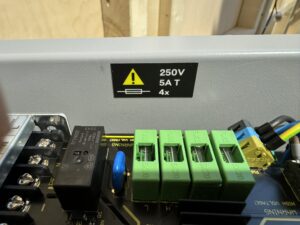
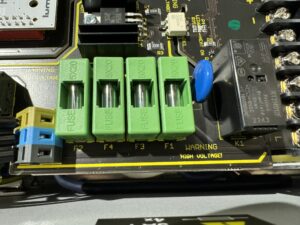
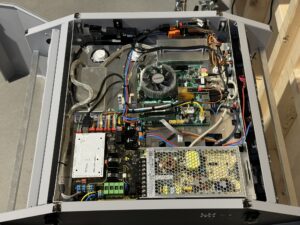
There are replaceable fuses inside LM3X projectors; the LAZR 4G™ model contains four fuses: 250V, 5A T-type, marked F1–F4. For other models fuse information contact support@LM3X.com
F1 -> Main Phase Conductor; if it fails, the projector won’t start
F2 -> Main Neutral Conductor; if it fails, the projector won’t start
F3 -> Heating Circuit Phase Conductor; if it fails, the projector will work, but the heating won’t work
F4 -> Heating Circuit Neutral Conductor; if it fails, the projector will work, but the heating won’t work